There 2 basic kinds of links; you can link to another location with in the page, or you can link to a completely different page.
First you need to identify the places within the page that you wish to link to. One way to do this is by using the id attribute.
id=”id”
<h2 id=”name”> List of names </h2>
<h2 id=”room”> List of rooms </h2>
Then to link to them you need to create a link. This is done by using an a tag and the href attribute. (href: hypertext reference)
<a href=”#id”> content </a>
and the content will be what the user clicks on to go to the location id.
<a href=”#name”> Name List </a>
(Read page 95 about anchors.)
Before you sit down to write the html for your web pages, it is a good idea to do some design with a storyboard.
This makes you think about how you want your pages linked so that users can navigate easily.
There are several different structures that you will find.
Linear Structures
If you wanted to put a story on the web, you would probably set it up so that the pages were linked in order. So that a user trying to read through it would be able to click forward to go directly to the next section.
This is fine if you don't have too many pages. If your story has 100 web pages and someone wants to get back to the first one, it would be unpleasant to navigate back through all 100 pages.
You can modify the linear structure. Maybe you want to allow the user to go back to the beginning and to the previous chapter. This is called augmented linear.
Hierarchical Structure
This is an inverted tree shape. This structure allows users to move up and down the tree, to go from the home page (or first page) to a variety of others, in what ever order they would like.
In reality, what you usually end up with is some sort of mixture of
all of these. The important thing is to plan your site before you
actually start creating it!
At a minimum, you should always have a way to get back to your home page. That way if a user comes into your site via a different means (a search engine) they can find your home page.
Creating Links between Documents
The format is the same as linking to a place within a page, but instead of an id, you put in the actual document name.
<a href=”mydoc.htm”> Contact Information </a>
You can also link to a particular place within another document, as long as there is an id associated with it.
<a href=”mydoc.htm#phone”> Phone </a>
This all assumes that all your files are in the same directory.
If you wish to link to a document that is in some other directory, or sub-directory, you need to include the entire path, or absolute path. This can get long and tiresome to write and can be a problem if you modify your pages.
A relative path specifies a document location that is relative to the location of the current document. In general, a relative path is easier to use and so is prefered by web designers.
You can have sub folders (sub directories) which are folders contained within the current folder. Or you can have folders (directories) that are on the same level.
Assume you are in the public directory. A relative path to the csci275 directory/folder is ”csci275/week1.htm”.
If you are in the csci275 folder/directory a relative path to the csci466 folder is ”../csci275/week1.htm”.
So you need the ../ if it is a sibling folder/directory.
My recommendation is that you do all your work in one sub-directory on your home/local computer and do every thing as a relative path.
You can also link to a resource on the internet. You need to know its URL (Uniform Resource Locator). This is the address of the resource on the web.
A URL looks like ”scheme:location” where scheme is the type of resource and location is where it is found.
The name of the scheme is taken from the protocol which is used to access the resource. A protocol is just a set of rules that defines how the information is exchanged between two devices. A web browser uses the ”hypertext transfer protocol” or http.
| Protocol | Used to | |
|---|---|---|
| file | Access documents stored locally on a user's computer | |
| ftp | File transfer protocol, used to access documents stored on an ftp server | |
| gopher | Used to access documents stored on a gopher server | |
| http | Access web pages | |
| mailto | Open a user's email client and address a new message | |
| news | Connect to a usenet news group | |
| telnet | Open a telnet connection to a specific server |
Web: http://server/path/filename
FTP site: ftp://server/path/filename
usenet newsgroup: news:newsgroup
Linking to e-mail
You can use an e-mail link to allow users to communicate with you. Then when a user clicks on the link, the browser starts an e-mail program and automatically inserts the address into the to: field. You do this with:
mailto:address
where address is the e-mail address.
For instance:
<A HREF="mailto:YourEmail@Somewhere.com">Your Name</A>
There is a small problem with having your e-mail address in your web site; some people use e-mail harvesters to scan through html code on web pages, find the e-mail addresses in the mailto links and use those addresses to send spam (unsolicited e-mail that is sent to many accounts). There is no good way to get around this if you want users to be able to click on your address.
Control the behavior and appearance of your links
By default, a new page is opened in the same browser window. You
can move through pages you have previously visited by using the
back button. Sometimes, you want the current contents to remain
visible, which means you need to open a new browser window.
You do this by adding a target attribute to your <a> tag.
<a href=”url” target=”MyWindow”> content</a>
where MyWindow is the name assigned to the new browser window.
target=“_blank” opens the link in a new, unnamed window, while target=“_self” opens the link in the current window
Use these sparingly – it can confuse people and clutter their desktops.
A popup title is descriptive text that appears whenever a user positions the mouse pointer over a link.
<a href=”url” title=”text”> content </a>
Here ”text” is the text that appears.
Not all browsers support this, so don't rely on it for important information, use it as a convenience for the user.
A semantic link is one whose tag contains information about the relationship between the link and its destination. This is done with the rev and rel attributes. The rel attribute describes the contents of the destination document, and the rev attribute complements rel because it describes the contents of the source, from the destination's view.
<a href=”file1.htm” rel=”first page” rev=”Title”> Go To first</a>
This information is not for the user, but rather the browser. Not all browsers can use them, and there is not yet a standard for names. Look at page 120 for a list of possibilities.
Working with color in html
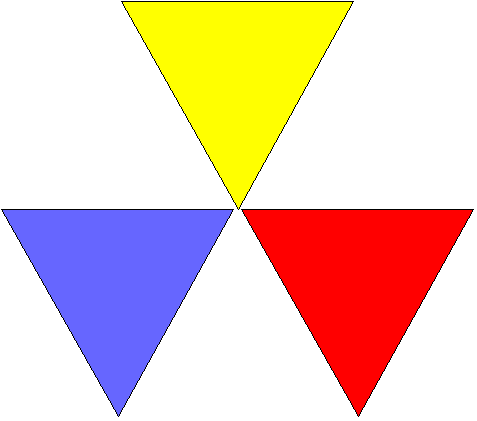
Red, yellow and blue are the 3 primary colors. All other colors can be made from mixing these.
The three secondary colors (green, orange and purple) are made by mixing adjacent primary colors
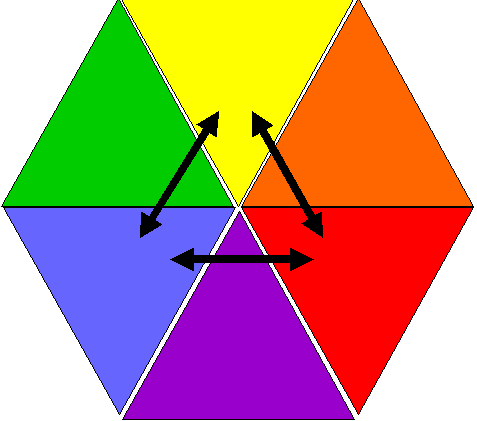
6 tertiary colors are from a mixture of a primary color and an adjacent secondary color.
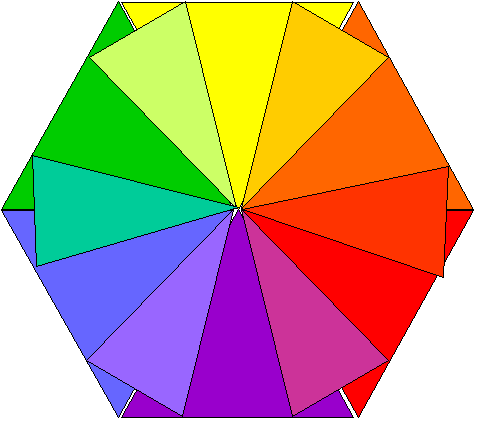
Tertiary colors are:
yellow-green
blue-green
blue-purple
red-purple
red-orange
yellow-orange
Mixing 2 complementary colors (opposites across the wheel) creates grey
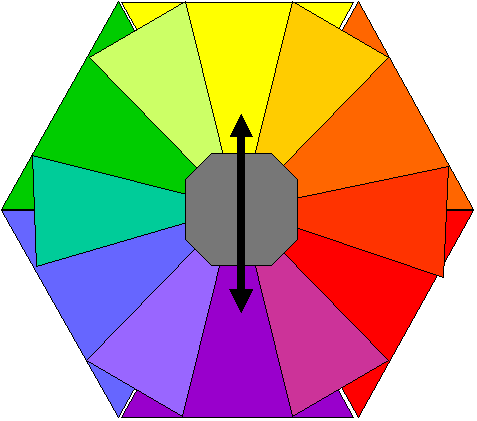
Mixing all colors results in a blackish-brown
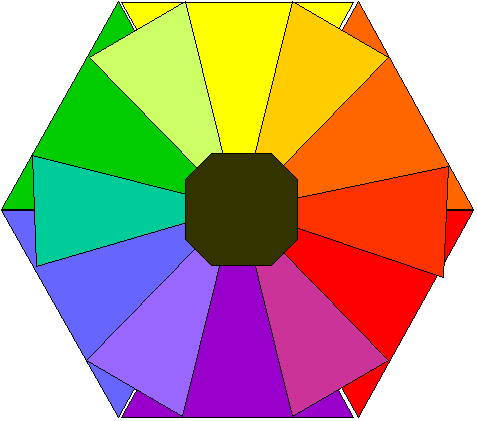
Traditional Color Theory Terminology
hue or chroma – the true color, like red
tint – a hue mixed with white (pink is a tint of red)
shade – a hue mixed with black (dark red is a shade of red)
value - the lightness or darkness of a color; pink and dark red are different values of red; value is the most important attribute in the “readability” of a web site
tone – a hue mixed with grey, the same effect can be made by mixing with the color's complementary color (opposites on the color wheel) (note that browns aren't really neutrals, they're tones of red, yellow, and orange)
saturation – the intensity of pure color, tones have reduced saturation, colors of low saturation are often said to be subtle)
contrast – the separation between the values of a color attribute. Used to emphasize some things while de-emphasizing others